

Is public Wi-Fi DNS safe? No, and the usual defences don't fix it
A public resolver, opportunistic encrypted DNS and DNSSEC all fail on a hotel gateway that forges answers. What actually protects you on someone else's network, and what to check before you sign in.
Short answer: no. The four things people reach for to fix it are a public resolver, encrypted DNS, DNSSEC and a VPN, and each one has a hole.
We've had clients come back from holiday having worked from a coffee shop, a McDonald's and an airport. They all told us the same thing: it's fine, it's not a problem. None of them knew what they'd joined, whether anything sat in the middle, or who was listening on the other side. We moved them to a public resolver with DNS over HTTPS in strict mode, and told them to use a VPN.1
One compromised box in a hotel basement, and every guest who joins that network and uses its DNS gets whatever answers its owner feels like giving. Nobody has to click anything.
Whoever hands out DNS decides what your laptop believes
When your laptop joins a network, it takes that network's resolver from DHCP
and trusts what comes back. That isn't a bug somebody forgot to fix. It's how
joining a network has always worked.2 DNS turns login.microsoftonline.com
into an IP address, and the machine answering has no obligation to tell you the
truth.
So whoever owns the gateway doesn't need to attack anybody's device. They just answer the question the device was always going to ask.
The symptom will look like a flaky hotel network: a login page that needed two attempts, or a certificate warning that seemed like the usual public-Wi-Fi nonsense.
Setting 8.8.8.8 changes who you ask, not who answers
A plain DNS query to 8.8.8.8 leaves your laptop unencrypted on port 53, normally as UDP, sometimes as TCP.3
It goes straight through the gateway, which can read it, drop it, or answer it
itself. If the gateway answers it, Google never sees the question.
Does DNS over HTTPS protect you on public Wi-Fi? Only in strict mode
Not out of the box. On the Windows machine I tested it was switched off, and Android's encrypted DNS, which is DNS over TLS there, defaults to the opportunistic kind. Turn it on properly and it does fix this, for the lookups it carries.
Opportunistic mode tries encrypted, and if that fails, falls back to plaintext.4 The gateway decides whether it fails. A hostile one can make it fail, and you get silently downgraded to port 53. Microsoft says so itself. Describing the setting that permits fallback, its own documentation says "you won't be provided with any notification if DNS queries are switched from DoH to plain text".5
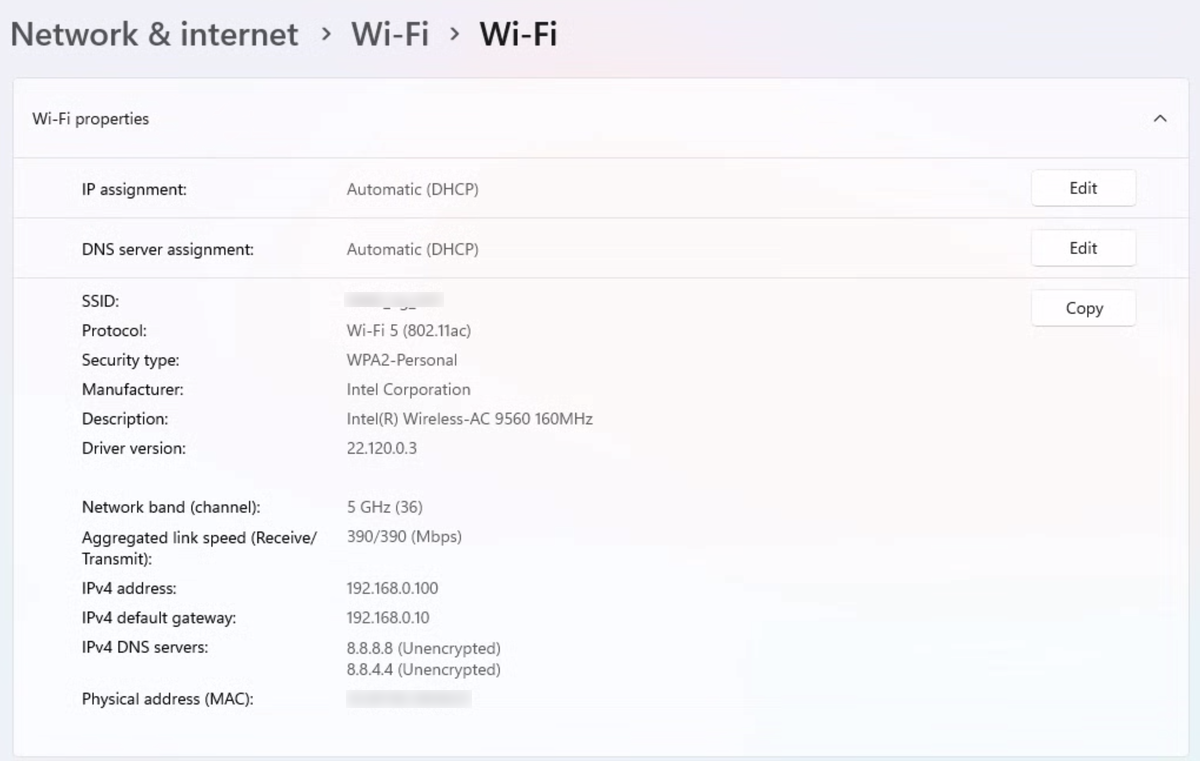
On Windows 11 the control is on the Wi-Fi properties page in Settings (Network & internet, Wi-Fi), under DNS server assignment, Edit. Switch the dialog from Automatic (DHCP) to Manual and turn IPv4 on. Two things then appear under each server box: a DNS over HTTPS dropdown (Off, On with an automatic template, or On with a manual one) and, separately, a Fallback to plaintext toggle. Both matter, and only one of them is likely to be wrong.6
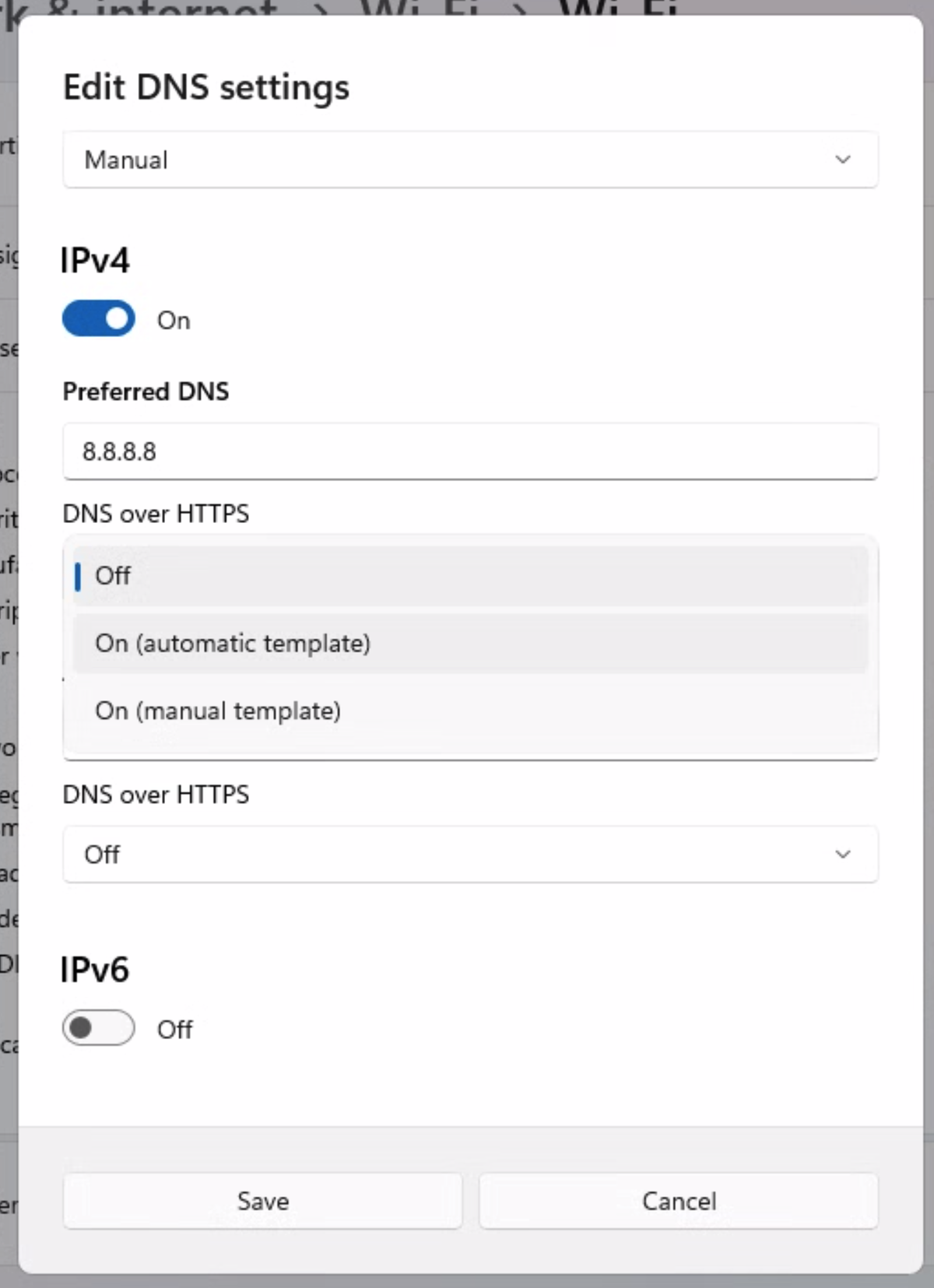
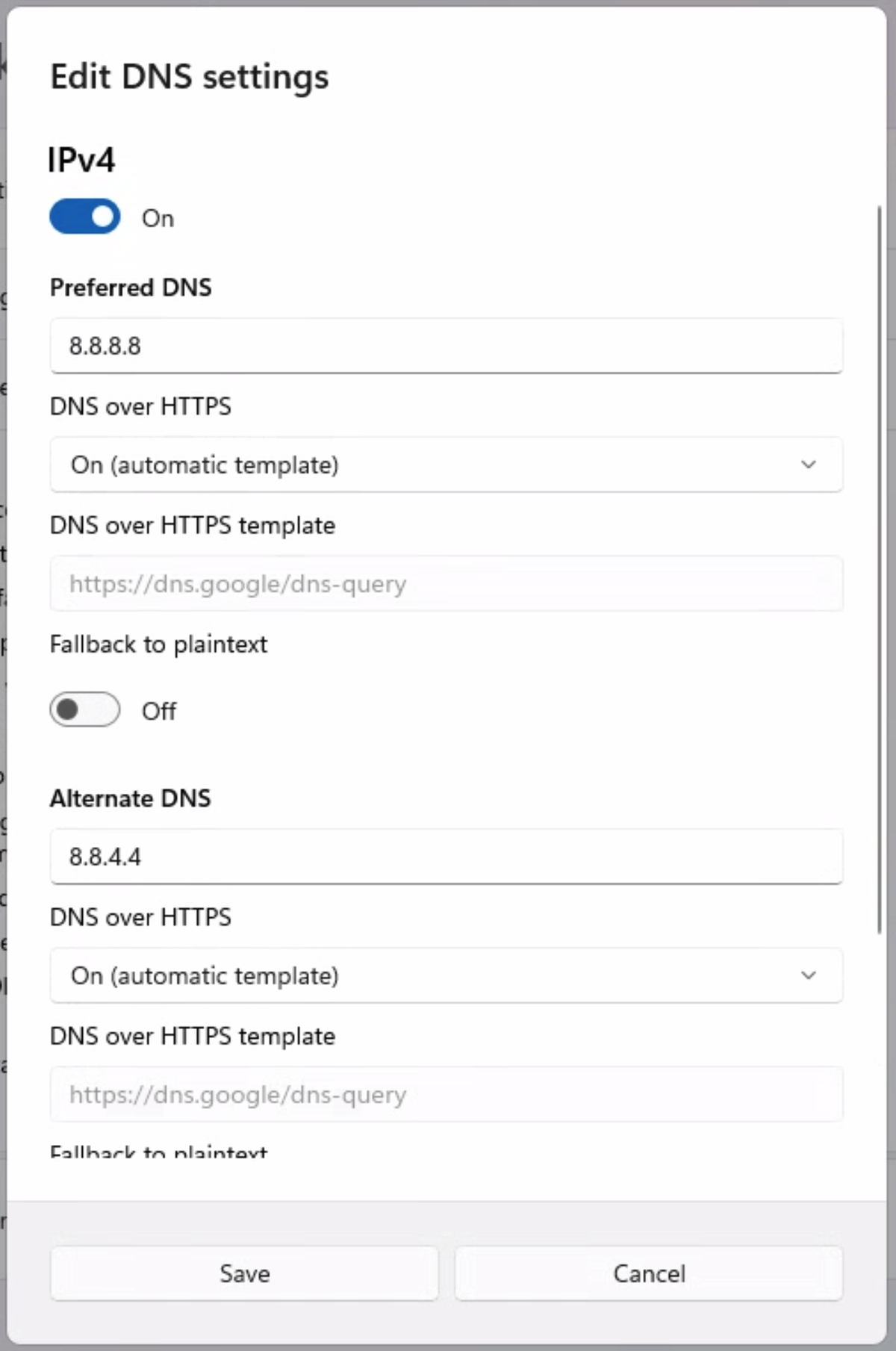
Encrypted DNS with fallback left on is opportunistic mode, and a hostile gateway walks straight through opportunistic mode. Set the dropdown to On and the template to automatic. Then check the fallback is Off, on the preferred and the alternate server both.
Credit where it's due, and it surprised me: on the machine I tested, that fallback toggle was already sitting at Off, untouched.7 So Windows wasn't quietly opting me into opportunistic mode. What it did was have DNS over HTTPS switched off altogether. That's worse than opportunistic and easier to miss, because a dropdown reading "Off" looks like a setting rather than a warning. Turn it on and, on that machine at least, the strict part was already done.
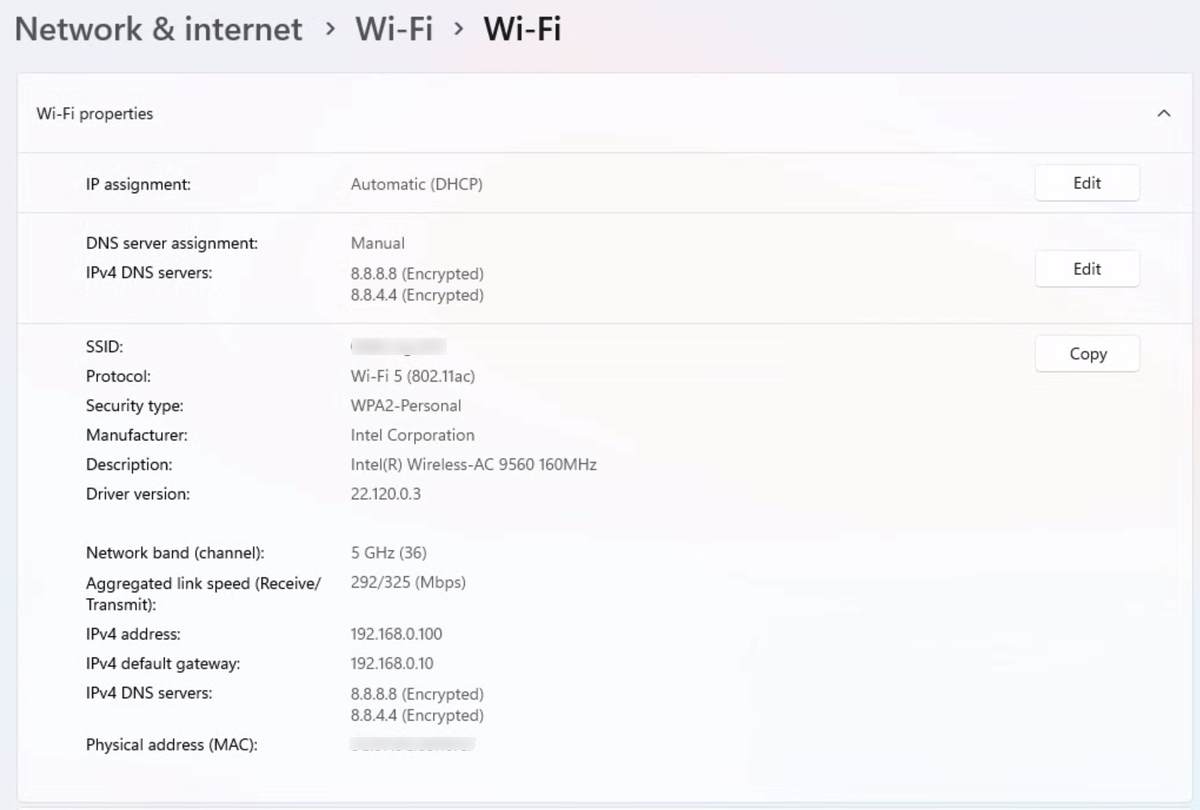
Then go back to the properties page and read the same two lines you started with.
Microsoft also documents the same control for Windows Server, as a local or
domain Configure DNS over HTTPS (DoH) name resolution group policy under
Computer Configuration\Policies\Administrative Templates\Network\DNS Client,
set to Require DoH.8
Microsoft's Windows Server documentation puts two limits on strict mode, and the
second one isn't optional. First, DoH can only be turned on there if your
resolver is on Windows' known-DoH list. Cloudflare, Google and Quad9 ship
on it, and Add-DnsClientDohServerAddress puts anything else on it.9 Microsoft's
Windows support page doesn't mention the list.6 Second, Microsoft explicitly
says not to enable Require DoH on domain-joined machines. Active Directory leans
on DNS, and the reason that page gives is that the Windows DNS Server service
doesn't support DoH. With Require DoH on, name resolution fails against a server
that doesn't support it.10 That reason has dated. Microsoft now documents
DoH in the DNS Server service on Windows Server 2025, from the June 2026 security
update.11 So strict mode is for travelling laptops that don't need AD,
unless the DNS servers your domain uses have been set up to answer DoH and
you've tested it.
macOS has no built-in strict-DNS switch, and the network can put itself first
macOS will show you the resolvers. Go to System Settings, Wi-Fi, Details on the network you're joined to, then DNS. The list is there, and anything the network handed you, rather than you typing it, appears greyed out.
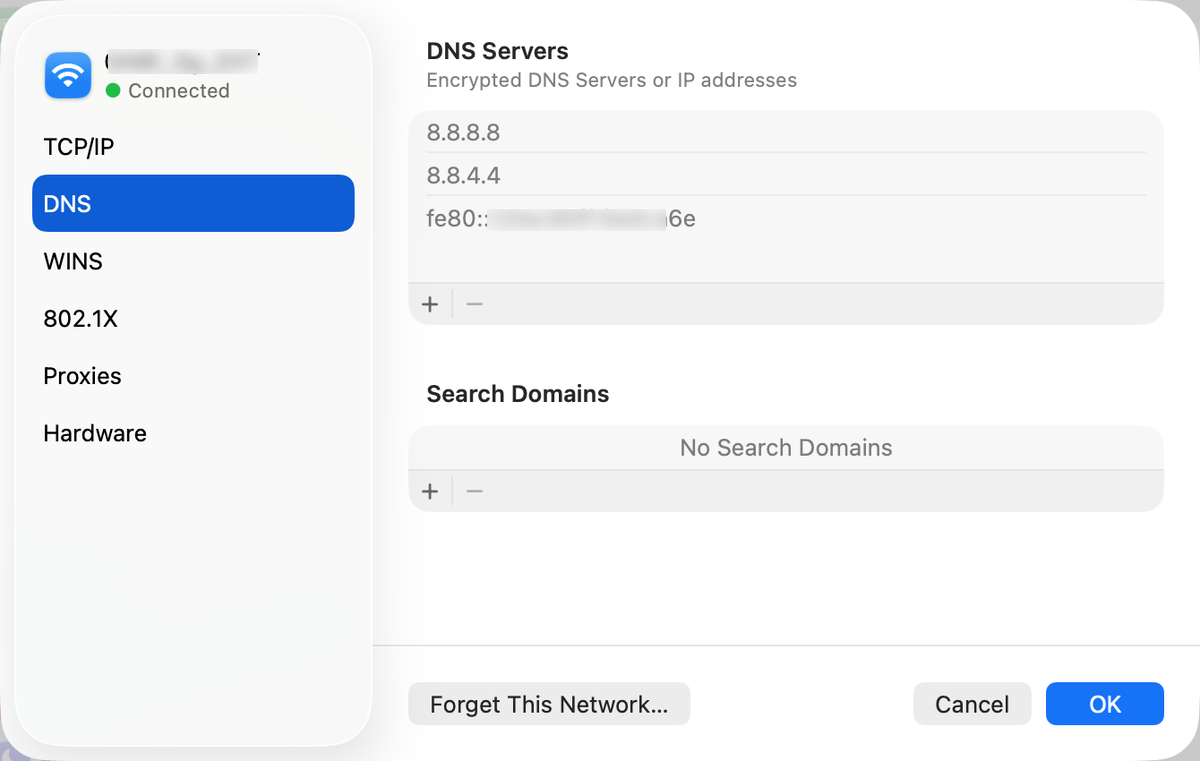
The line under the DNS Servers heading reads "Encrypted DNS Servers or IP addresses", so the field does accept an encrypted resolver. That's more than I expected before I looked. But nothing on the pane tells you which of the three servers is encrypted and which isn't, and there's no equivalent of the Windows fallback toggle. You get the addresses and no answer to the question that matters.12
Then there's the order, and it's the reason to open Terminal. Run
scutil --dns and read the top block, resolver #1.
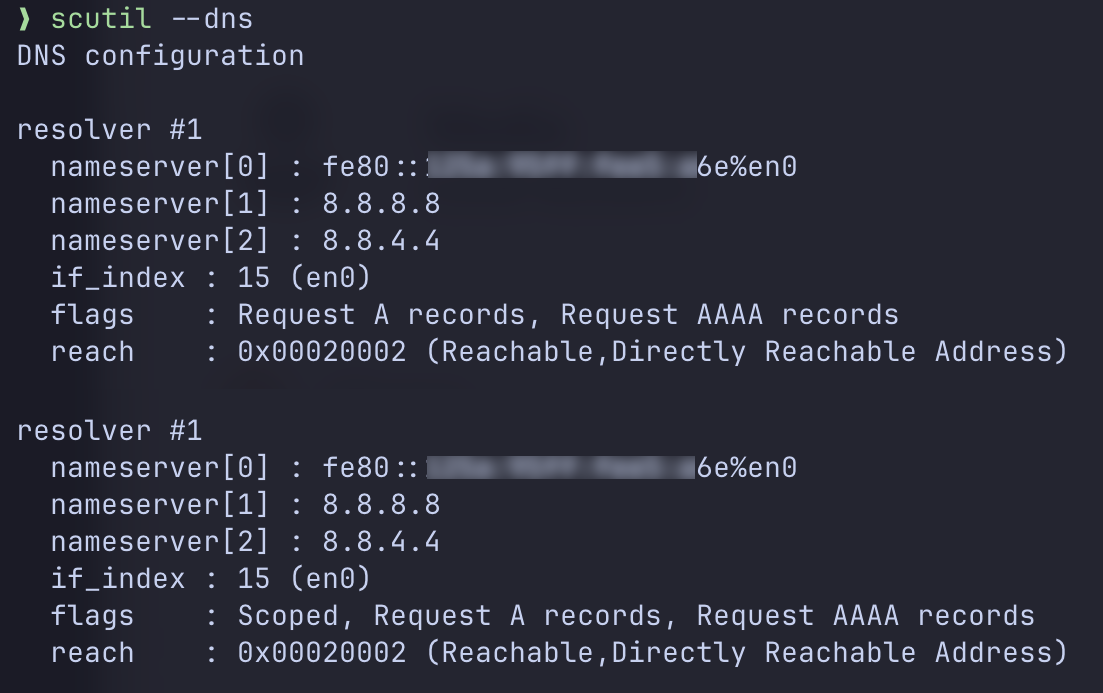
scutil prints the general configuration and then
the scoped one, and both agree on the order.Same three servers, different order. System Settings put the fe80:: address
at the bottom of the list. scutil puts it at the top, which is where it
counts: the macOS resolver manual says servers are queried in the order listed.13
scutil shows the configuration, though, not which server answered a
particular lookup.
That address is link-local, so it belongs to a device on the network you joined, not to anyone you chose. Set up like this, the Mac asks the network's own box first and Google second, while the settings pane shows Google first and the network's box last.
One more command confirms none of it was chosen locally:14
$ networksetup -getdnsservers Wi-Fi
There aren't any DNS Servers set on Wi-Fi.
Nothing set by hand, three servers configured, and a device on the local network at the top. In a hotel, that first entry sits on the hotel's network.
The easy mistake is to open Settings, see a familiar public resolver at the top
of the list, and call it handled. The list isn't the order the Mac is set to ask in.
scutil --dns is.
Does turning IPv6 off make the fe80:: entry go away? Possibly, but it
encrypts nothing, so I wouldn't build a habit on it. And neither the settings pane nor
scutil will tell you whether a given query travelled encrypted, which is the
one thing Windows does better here. Both tell you who's configured to be asked, and
that's all.
Linux, iPhone and Android each lock it down differently
Linux: strict DNS over TLS, and the Wi-Fi's resolver still gets asked
On a distribution that uses systemd-resolved, encrypted DNS is DNS over TLS
rather than HTTPS, and it lives in /etc/systemd/resolved.conf:
[Resolve]
DNS=8.8.8.8#dns.google
DNSOverTLS=yes
Domains=~.
DNSOverTLS=yes is the strict setting. The
systemd manual
says every connection to the server is then encrypted, and if the server can't
do TLS "all DNS requests will fail". The other value, opportunistic, is the one
a hotel gateway can push back to plaintext, and the same manual names that
downgrade attack itself. The #dns.google part is the name the server's
certificate is checked against.15
Setting a server here doesn't, by itself, stop the Wi-Fi's own resolver
being asked. The manual says requests go to these servers "in parallel to suitable per-link DNS servers" learned at run time. On hotel Wi-Fi, that means the hotel's. Whether those get asked over TLS depends on the link's own DNSOverTLS setting: the manual says yours only applies to them if the link's is unset.16
Domains=~. tells systemd-resolved to use your servers "preferably for all
domains".17 Preferably is the manual's word, so check rather than trust it.
Restart with sudo systemctl restart systemd-resolved, then read
resolvectl status.
It shows the global and per-link settings in effect, so look at what the Wi-Fi
link lists.18
iPhone: an app or a profile, not a switch in Wi-Fi settings
On an iPhone, system-wide encrypted DNS comes from an app or a configuration profile. In Apple's June 2020 developer session on encrypted DNS, system DNS settings are configured "either by a NetworkExtension app that uses NEDNSSettingsManager, or an MDM profile that contains a DNSSettings payload". The installed configuration then shows up under Settings, General, VPN & Network, in a DNS section, where you switch it on. That walkthrough is from 2020, so expect the menu name to differ on a current iPhone.19
In practice that means your DNS provider's app or profile, installed before the
trip and checked in that DNS section. On a managed fleet it comes from your MDM.
Apple has marked the older DNS Settings payload deprecated from iOS and macOS 27,
and points to the declarative com.apple.configuration.network.dns-settings
configuration instead.20 The captive-portal problem in the next section was
reported against the older payload on macOS.
Android: Private DNS, and the hostname is what makes it strict
Android 9 and later have a Private DNS setting under Network & internet (phone makers move the menu around). Left on its default, the Android team's own description from April 2018 is that "devices automatically upgrade to DNS over TLS if a network's DNS server supports it". A hotel resolver that's forging answers doesn't have to support it.21
Type a hostname in instead, dns.google for
Google Public DNS.
In the same April 2018 post: "Android then sends all DNS queries over a secure channel to this server or
marks the network as 'No internet access' if it can't reach the server."22 That
second half is strict mode doing its job. If a hotel blocks that server until
you've logged in, it's also what you get at the login page. The workaround is to switch
Private DNS back to automatic for the minute the portal needs, then put the
hostname back.
Strict mode has a second price, and it's the hotel login page
Strict mode can also break captive portals. Until you've logged in, a portal
network can drop every DNS query headed for a resolver out on the internet, so
the lookups the login page needs never get an answer. A laptop locked to
encrypted-only can sit there unable to join the network at all. Apple's
own developer forums show it
happening: a DNS Settings profile pushed by MDM swallows the queries the
portal's login page depends on. The Apple engineer answering points at
matchDomains: scope the profile to the domains you care about, which he
expects would let the portal resolve the ordinary way.23
That's one report. Apple's 2020 session says captive network detection "is
automatically granted an exception"24, but the person reporting it says
the profile was supposed to be captive-portal aware, and on macOS it wasn't.23
So you have a choice to make: strict mode plus a manual unlock for as long as it takes to log in, or opportunistic mode and a hole. I prefer strict with the unlock, and I accept that it makes joining hotel Wi-Fi annoying.
DNSSEC wouldn't have saved you here, and I went and checked
DNSSEC signs answers so a resolver can prove they came from the real authoritative server. It sounds like the exact defence for a forged answer. It isn't, for two separate reasons.
First, validation normally happens at the recursive resolver, which on a compromised hotel network is the attacker. The machine you'd be asking to check the signature is the same machine that forged the answer.25
Second, and I didn't expect this until I ran it through
our own DNSSEC checker while writing this
paragraph: microsoftonline.com is not signed. Nor is microsoft.com. The
checker walks the chain from the root down and asks four validators
independently, so a single resolver's cache can't hide a break.26 There's no DS
record at the parent and no DNSKEY at the zone, and that comes from the
authoritative servers themselves, .com's and Microsoft's Azure DNS, not only
from resolvers. Cloudflare, Google, Quad9 and
OpenDNS all return the answer as insecure rather than validated. Checked 27
July 2026, 3 October 2026 and again on 24 October 202627, and you can re-run it yourself in a few seconds. There's no
signature on Microsoft's login domain for anything to validate. Even a stub
resolver doing its own validation would have had nothing to compare the forged
answer against.
If you want DNSSEC explained properly rather than in a paragraph, that's a separate article. It's a good thing to turn on for your own domain. For a domain that isn't signed, it was never going to be the control that stops a forged answer on hotel Wi-Fi.
The VPN advice is right, and it has a hole exactly where you connect
A properly configured, always-on, full-tunnel VPN is the strongest control here. Once the tunnel's up, DNS goes through your resolver and the gateway is carrying encrypted traffic it can't read. Split tunnelling that lets DNS out locally undoes the whole thing, so audit for that.
The gap is the order of operations. On a captive network the tunnel can't come up until you have internet, and you don't have internet until you've cleared the portal. Clearing it can mean talking to the network's own resolver, in plaintext. Cisco and Palo Alto both ship an explicit hole for this. Cisco's captive portal remediation has to be permitted in the profile before an always-on closed policy will let you reach a login page at all.28 Palo Alto's GlobalProtect has a Captive Portal Exception Timeout, 0 to 3600 seconds, default 0: the window staff get to log in to a hotel portal before GlobalProtect blocks the network. Palo Alto recommends leaving it at 0 when the portal opens in GlobalProtect's embedded browser, because that traffic is allowed anyway.29
A minute of unprotected DNS on a hostile network is a much smaller window than a whole trip. It isn't zero. Treat anything that happens before the tunnel icon goes green as untrusted, and in particular don't sign into anything during it.
WPAD is the second hole, and the obvious way to close it can break software
Windows uses Web Proxy Auto-Discovery to look for a proxy configuration on the network it has just joined.30 On hotel Wi-Fi, the network answering that question is the one you don't trust, and a proxy it hands you can carry your traffic.
Turn it off if you don't use it. Leave the WinHttpAutoProxySvc service running:
Microsoft's service guidance for Windows Server 2016 says not to disable it, because
"anything that uses the network stack can have a functional dependency on this
service".31 Switch off the discovery instead:
DisableWpad set to 1
under HKLM\SOFTWARE\Microsoft\Windows\CurrentVersion\Internet Settings\WinHttp.32
Then read the next paragraph of Microsoft's page. That key only stops WPAD detection for calls made through the WinHTTP
API. Applications can still resolve the name wpad by asking DNS directly.
Microsoft says in the same breath that you also need to turn it off in the
Windows Settings UI, since browsers and third-party apps may rely on those
settings instead.33
The device-code prompt is the one a human can actually catch
A network that controls your DNS and its own login page can show you a page asking you to enter a code at Microsoft's device-code sign-in, a code the attacker started. There's no fake password page to spot. Microsoft's real sign-in appears, the user approves it, and the session belongs to whoever started the flow.34 Microsoft itself calls device code flow "a high-risk authentication method that can be part of a phishing attack".35
That's why the fix is administrative rather than educational. In Entra ID, Conditional Access has an Authentication flows condition. Set it to device code flow, grant control Block. Microsoft's own wording is to "get as close as possible to a unilateral block", which is unusually direct for them.36 Their documented steps have you create it in report-only first. That's worth doing, to find the shared-device edge case you forgot about. It needs Microsoft Entra ID P1, and Microsoft says Business Premium customers can use Conditional Access too.37
What to actually do before your next trip
For whoever is travelling, in the order that matters:
- Tether to your phone instead. Unglamorous, and it removes the entire attack.
- Get the VPN up before you do anything else, and treat the pre-tunnel window as hostile. Clear the portal, connect, then start work.
- Refuse every unexpected sign-in prompt. Not "check it carefully". Refuse it. If Outlook was working ten minutes ago and now something wants you to approve a code, the answer is no, on that network, permanently.
- Check the address bar and the certificate before you type a password, and treat a warning as a full stop rather than a speed bump. A lookalike domain reads fine at a glance in a hotel lobby at 22:00.
- Check who the machine is set to ask, not who you think you configured.
scutil --dnson a Mac,Get-DnsClientServerAddresson Windows. Read the order. If something belonging to the network sits above the resolver you chose, your resolver isn't first in line. - Do the nonsense-domain test. Run
nslookup thisisnotarealdomain-4f7q.comfrom the terminal. It should come back NXDOMAIN. A gateway that answers everything will answer this too, so an answer where there should be none is a strong tell. A more careful attacker only forges the domains they care about, though, so a clean result proves nothing. - Compare notes with the outside world. Look up the domain you care about on the hotel network. Then check what the rest of the internet says, from your phone on mobile data, with our DNS propagation checker.
- Never install an update a Wi-Fi page offers you. Windows, macOS and your browser update themselves from their own settings, not from a hotel login page.
Copy that list for yourself and for whoever you're travelling with. And if your DNS settings don't look like the screenshots above, send a screenshot of them to [email protected]. We'll tell you what you're looking at.
For whoever runs the fleet:
- Always-on full-tunnel VPN, split tunnelling audited off. Everything else on this list is a second line.
- Block device code flow in Conditional Access. Report-only first.
- Encrypted DNS in strict mode on the travelling laptops, not on domain-joined machines unless their DNS servers answer DoH and you've tested it, and with a documented way for staff to unlock it while they clear a portal.
- Disable WPAD by registry, not by killing the service, and in the Settings UI as well, or browsers may carry on asking.
- Watch sign-ins after people travel. Authentications from hosts you don't recognise, and devices freshly registered in Entra ID, are worth a look.
If you run the Wi-Fi rather than just use it, keep the gateway's management interfaces (SSH, SNMP, the web console) off the internet and off default or reused passwords. Whoever gets into that box answers DNS for every guest who uses it.
Sources checked
Each claim above was checked against the source named here on 3 October 2026. Every source was fetched again on 4 October 2026, and read again, with every command re-run, on 24 October 2026. Vendor pages move and change, so follow the link rather than trusting the date.
- From the author's own client work. No outside source. ↩
- “The domain name server option specifies a list of Domain Name System (STD 13, RFC 1035 [8]) name servers available to the client”. Source: RFC 2132, §3.8. ↩
- “The Internet supports name server access using TCP [RFC-793] on server port 53 (decimal) as well as datagram access using UDP [RFC-768] on UDP port 53 (decimal)”; “datagrams are preferred for queries due to their lower overhead and better performance”. Source: RFC 1035, §4.2, read 24 October 2026. ↩
- “When it's turned on, a DNS query will be sent unencrypted if it can't be sent over HTTPS”. Source: Essential Network Settings and Tasks in Windows, To specify IPv4 settings manually, read 3 October 2026. ↩
- “you won't be provided with any notification if DNS queries are switched from DoH to plain text”. Source: Secure DNS Client over HTTPS (DoH) on Windows Server 2022, Configure the DNS client to support DoH, read 3 October 2026. ↩
- “When it's turned off, a DNS query won't be sent if it can't be sent over HTTPS”. Source: Essential Network Settings and Tasks in Windows, To specify IPv4 settings manually, read 3 October 2026. ↩
- Observed by the author. No outside source. ↩
- “Windows Server 2022 local and domain Group Policy settings include the Configure DNS over HTTPS (DoH) name resolution policy”. Source: Secure DNS Client over HTTPS (DoH) on Windows Server 2022, Configuring DoH through Group Policy, read 3 October 2026. ↩
- “You can only configure the Windows Server client to use DoH if the primary or secondary DNS server selected for the network interface is on the list of known DoH servers”. Source: Secure DNS Client over HTTPS (DoH) on Windows Server 2022, Configure the DNS client to support DoH, read 3 October 2026. ↩
- “Don't enable the Require DoH option for domain joined computers as Active Directory Domain Services is heavily reliant on DNS because the Windows Server DNS Server service doesn't support DoH queries”; of Require DoH: “If configured DNS servers don't support DoH, name resolution will fail”. Source: Secure DNS Client over HTTPS (DoH) on Windows Server 2022, Configuring DoH through Group Policy, read 24 October 2026. ↩
- “This article explains how to enable DNS over HTTPS (DoH) in the DNS Server service running on Windows Server”; prerequisite: “Windows Server 2025 with the 2026-06 Security Update”. Source: Enable DNS over HTTPS in DNS Server, Prerequisites, read 24 October 2026. ↩
- Observed by the author. No outside source. ↩
- The order is observed by the author (screenshots above). On the query order: “If there are multiple servers, the resolver library queries them in the order listed”; and
man 8 scutilon--dns: “The first listed resolver(5) configuration is considered to be the "default" configuration”. Source: macOSman 5 resolver, nameserver, andman 8 scutil, read 24 October 2026 on macOS 27.0.1. ↩ - Observed by the author. No outside source. ↩
- “If the DNS server does not support DNS-over-TLS all DNS requests will fail”. Source: resolved.conf(5), systemd 262~devel (man7.org mirror), OPTIONS, read 3 October 2026. ↩
- “in parallel to suitable per-link DNS servers”; of DNSOverTLS=: “For per-link DNS servers the per-link setting is in effect, unless it is unset in which case the global setting is used instead”. Source: resolved.conf(5), OPTIONS, read 24 October 2026. ↩
- “preferably for all domains”. Source: resolved.conf(5), OPTIONS, read 3 October 2026. ↩
- “Shows the global and per-link DNS settings currently in effect”. Source: resolvectl(1), COMMANDS, read 3 October 2026. ↩
- “System DNS settings can be configured either by a NetworkExtension app that uses NEDNSSettingsManager, or an MDM profile that contains a DNSSettings payload”. Source: Enable encrypted DNS (WWDC20), WWDC20, read 3 October 2026. ↩
- “Use the declarative management com.apple.configuration.network.dns-settings configuration”; marked “Deprecated: iOS 27+ | iPadOS 27+ | macOS 27+ | visionOS 27+”. Source: DNSSettings (Apple Device Management), read 24 October 2026. ↩
- “devices automatically upgrade to DNS over TLS if a network's DNS server supports it”. Source: DNS over TLS support in Android P Developer Preview, DNS over TLS in P, read 3 October 2026. ↩
- “Android then sends all DNS queries over a secure channel to this server or marks the network as "No internet access" if it can't reach the server”. Source: DNS over TLS support in Android P Developer Preview, DNS over TLS in P, read 3 October 2026. ↩
- The question: “Of course, those DNS packets are dropped by the network because the captive portal isn't cleared”. The Apple engineer's reply: “This would presumably let the captive portal traffic traverse the system untouched as well”. The question also says: “I found evidence that DNS Settings is supposed to be captive portal aware, but that is for sure not happening on macOS (at least)”. Source: Apple Developer Forums thread 704833, read 24 October 2026. ↩
- “Captive network detection, like when someone logs on to a café network is automatically granted an exception”. Source: Enable encrypted DNS (WWDC20), WWDC20, read 24 October 2026. ↩
- “Security-aware stub resolvers may be either "validating" or "non-validating", depending on whether the stub resolver attempts to verify DNSSEC signatures on its own or trusts a friendly security-aware name server to do so”. Source: RFC 4033, §2. ↩
- Our own tool, checked against its code. Source: TamingDNS DNSSEC checker. ↩
- Measured with
for d in microsoftonline.com microsoft.com; do for r in 1.1.1.1 8.8.8.8 9.9.9.9 208.67.222.222; do dig +short DS $d @$r; dig +short DNSKEY $d @$r | wc -l; dig +dnssec A $d @$r | grep flags; done; done, and at the authoritative servers withdig +norec DS $d @a.gtld-servers.netanddig +norec DNSKEY $d @$(dig +short NS $d | head -1)Run on 24 October 2026. ↩ - “Captive portal remediation must be explicitly allowed in an AnyConnect VPN Client profile if AnyConnect Always-on is enabled and the Connect failure policy is set to Closed”. Source: AnyConnect Captive Portal Detection and Remediation (the live page refused a scripted fetch; read in the Internet Archive copy of 30 September 2025), read 24 October 2026. ↩
- “enter the amount of time (in seconds) within which users can log in to the captive portal (range is 0 to 3600 seconds; default is 0 seconds)”; “For embedded browser captive portal, the recommended Captive Portal Exception Timeout (sec) is 0 because embedded browser captive portal traffic is implicitly allowed”. Source: Captive Portal and Enforce GlobalProtect for Network Access, read 24 October 2026. ↩
- “Windows uses Web Proxy Auto-Discovery protocol (WPAD) to discover Proxy Auto-Config (PAC) files from the local network”. Source: How to disable HTTP proxy features, How to disable WPAD, read 3 October 2026. ↩
- “Anything that uses the network stack can have a functional dependency on this service”; recommendation for WinHttpAutoProxySvc: “Do not disable”; scope: “The guidance in this article only applies to Windows Server 2016 with Desktop Experience, unless you're using it as a desktop replacement for end-users”. Source: Security guidelines for system services in Windows Server 2016, WinHTTP Web Proxy Auto-Discovery Service, read 24 October 2026. ↩
- “The registry key stops WPAD detection for all proxy detection calls made through the Windows HTTP Services (WinHTTP) application programming interface (API)”. Source: How to disable HTTP proxy features, How to disable WPAD, read 3 October 2026. ↩
- “In addition to setting the registry key, WPAD should also be disabled in the Windows Settings UI, because third-party apps and Internet browsers may rely on these settings for Proxy Auto-Discovery”. Source: How to disable HTTP proxy features, How to disable WPAD, read 3 October 2026. ↩
- “It is possible for the device flow to be initiated on a device in an attacker's possession. For example, an attacker might send an email instructing the target user to visit the verification URL and enter the user code”. Source: RFC 8628, §5.4, read 24 October 2026. ↩
- “Device code flow is a high-risk authentication method that can be part of a phishing attack or used to access corporate resources on unmanaged devices”. Source: Authentication flows as a condition in Conditional Access policy, Device code flow, read 3 October 2026. ↩
- “We recommend organizations get as close as possible to a unilateral block on device code flow”. Source: Block authentication flows with Conditional Access policy, Device code flow policies, read 3 October 2026. ↩
- “Customers with Microsoft 365 Business Premium licenses can also use Conditional Access features”. Source: Microsoft Entra Conditional Access: Zero Trust Policy Engine, License requirements, read 3 October 2026. ↩